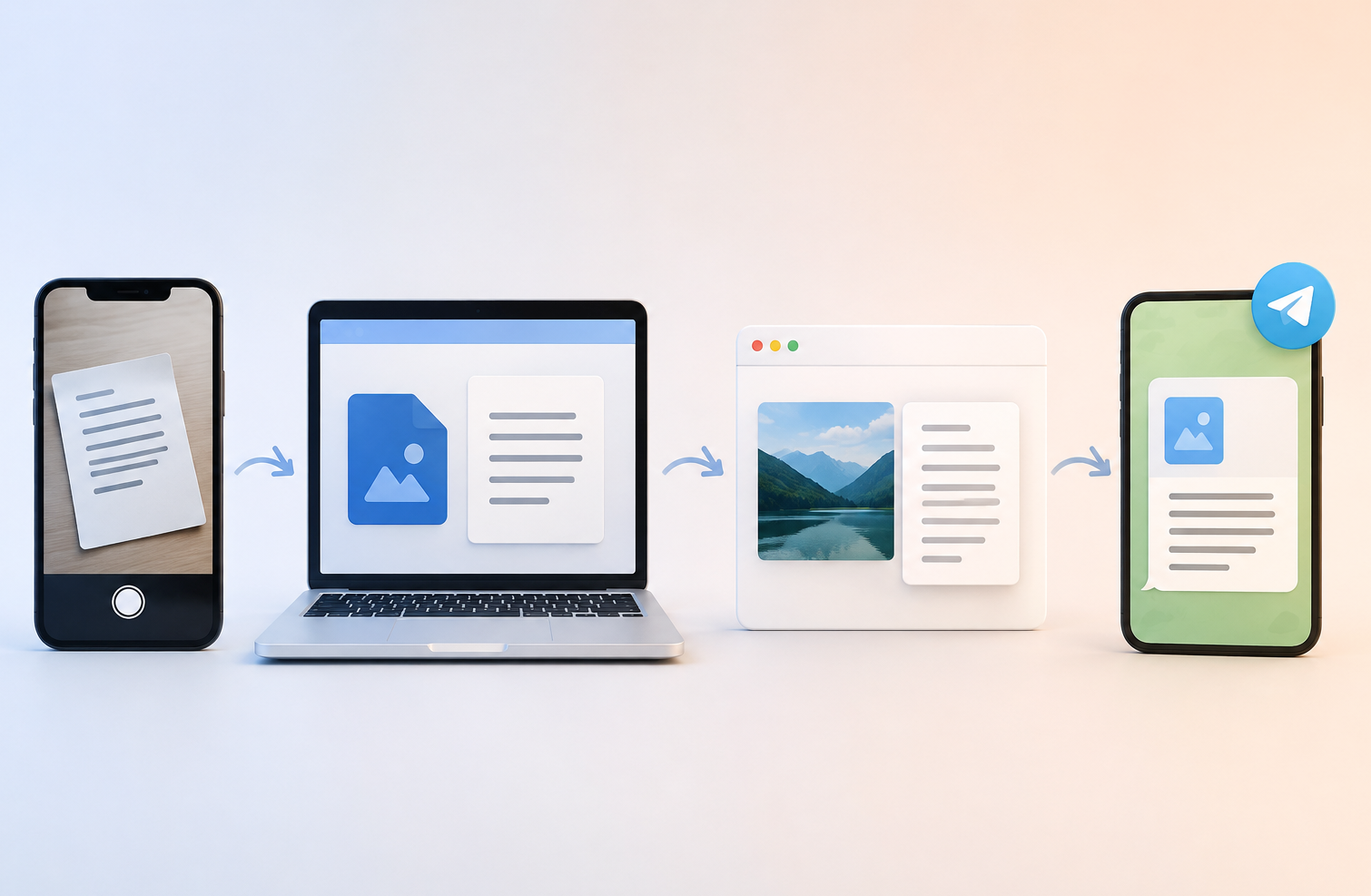
The basic workflow for each method
So, today I decided to test which method is actually faster when you need to extract text from an image and use it somewhere else.
I took four of the most common options and went through each one step by step. But pretty quickly, I realized that recognizing the text itself is only part of the process. What happens before and after OCR turned out to be much more interesting.
What matters is not only where the image is to begin with, but also whether you need to save it first or move it to another device, how many steps it takes to get editable text, and what you have to do with that text afterward.
So this time, instead of comparing specific tools and their features, I decided to compare the entire workflow from the source image to usable, editable text.
The short version is that the best method depends a lot on where your image is.
If the image is already on your phone, built-in text recognition is probably the easiest place to start. For a local file on your computer, a web tool can be a convenient option. If the image is already open on a web page, a browser extension can be convenient. And if the image is inside another app and you can share it directly from there, a Telegram bot can be a useful option.
For this comparison, I tested four different ways to extract text from images:
- built-in text recognition on a smartphone
- a web-based image-to-text tool
- a browser extension
- a Telegram bot
I'm not comparing OCR accuracy, extra features, or specific services here because I'll do a separate test for that. What I'm interested in this time is something else: how many steps it actually takes to get text from an image and use it somewhere else.
For each method, I went through the basic workflow from the source image to having the extracted text ready to use in another app.
| Text extraction method | Basic workflow |
|---|---|
| Built-in smartphone text recognition | Open Photos/Gallery → find the image → open it → activate built-in text recognition → select the text you need → copy → open the app where you need the text → paste |
| Web tool | Open a browser → go to the web tool → upload an image from your device or paste a direct image URL → start recognition → get the text → copy or download the result → open the app where you need the text → paste the text or upload the file |
| Browser extension | Open the relevant page in your browser → open the extension → upload an image saved on your device or select an area on the open web page → start recognition → get the text → copy → open the app where you need the text → paste |
| Telegram bot | Find the image and tap Share → choose Telegram → select ImgTxtApp by LaVioLab → get the extracted text → copy it or tap Share → send the text to the app where you need it |
At first glance, the difference doesn't look huge. In every case, you somehow need to give the tool an image, extract the text, and get the result back.
But this is where the nuances start.
Built-in text recognition on a smartphone
I started with the most obvious option: built-in text recognition on a smartphone. I've already covered how this works on iPhone and Android in a separate article.
If the image is already in your photo gallery, the process is quite simple:
Open Photos/Gallery → find the image → open it → activate built-in text recognition → select the text you need → copy → switch to another app → paste
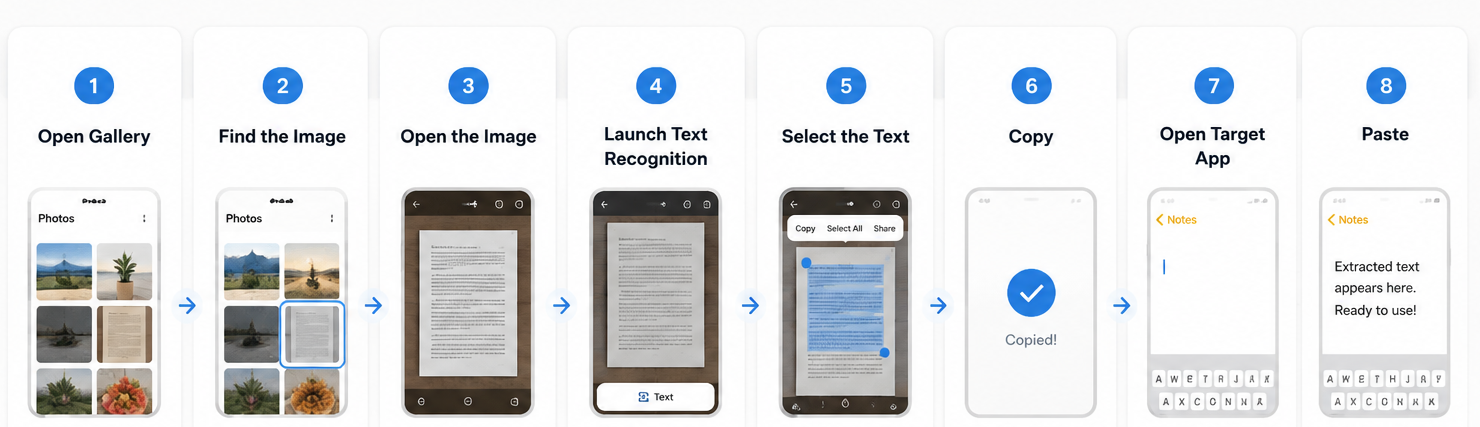
That came to 8 actions, and for a single screenshot or photo, it's a pretty straightforward way to copy text from an image without installing a separate app. You don't need to install anything else, open a website, or upload the image to a separate service.
But there are 3 important nuances.
1. The image already needs to be on your phone
If it's on your computer, in cloud storage, or on Instagram, you'll first need to transfer it to your phone, download it, or take a screenshot. That immediately adds extra steps to the original eight.
2. You have to select the text you need manually
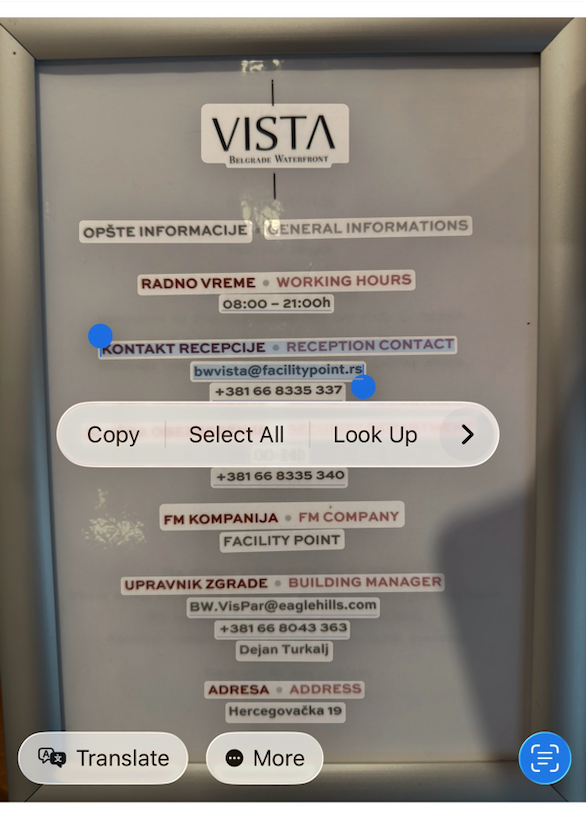
As you can see in the screenshot, the tool recognizes not only the main text I actually need, but also other labels and text elements in the image. So I have to select the relevant parts manually, sometimes in several separate pieces.
3. You still have to move the extracted text manually
Once the text has been recognized, you need to copy it, open the app where you want to use it, and paste it there. So the workflow doesn't actually end when the OCR is done.
Built-in recognition is the shortest path only when the image is already sitting in your gallery — everything before and after that is on you.
Web tool
Next, I tested a regular web-based image-to-text tool, where the workflow looks slightly different:
Open a browser → go to the tool → upload an image → start recognition → get the text → copy → switch to another app → paste
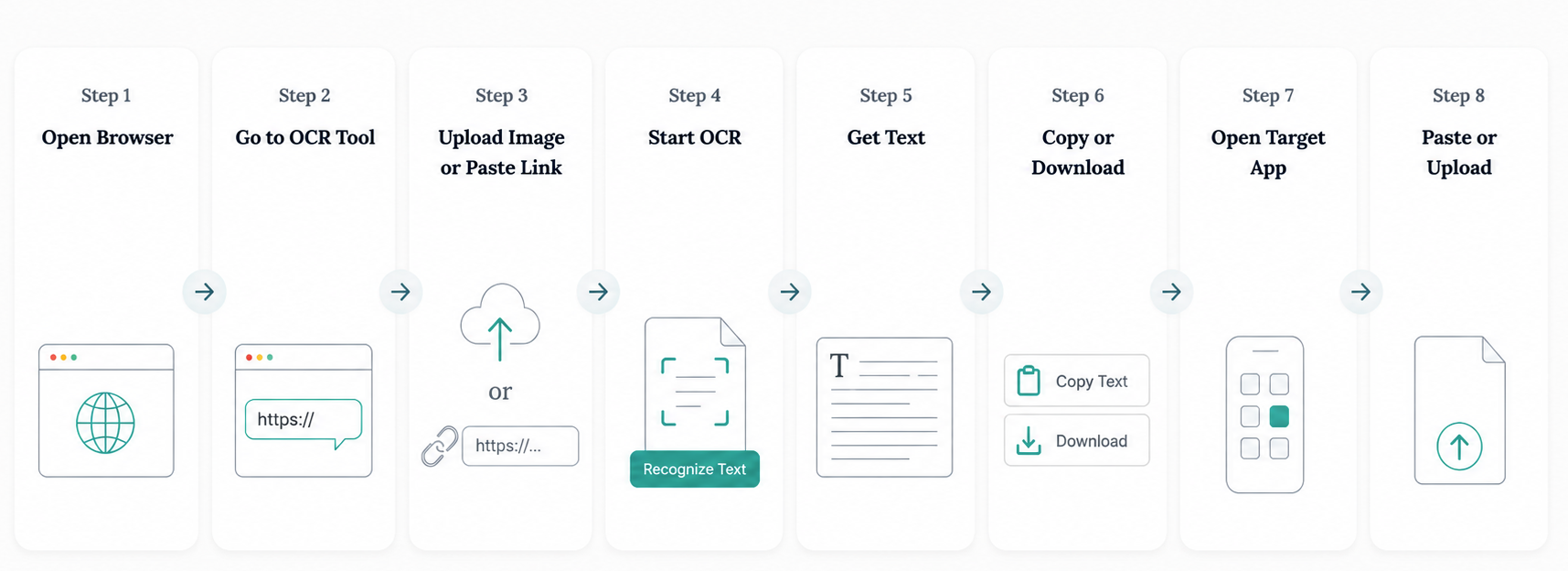
The basic workflow came to 8 actions again. And if the image is already saved on your computer or smartphone, the process is pretty simple: open the website and upload the file.
Some web tools offer another option: you can paste an image URL. But this is where I found an interesting limitation. The services I tested only accepted direct image URLs. I couldn't simply paste a link to something like an Instagram post and have the service retrieve the image itself.
So if the image is on Instagram or another social network, you first need to save it or take a screenshot, then return to the browser and upload the file. Again, this adds more actions to the basic workflow.
The situation with the extracted text is similar to the previous method. Once the text has been recognized, you need to copy it, open the app where you want to use it, and paste it manually. Some web services also let you download the result as a file.
Browser extension
Browser extensions turned out to be a little more interesting. I tried several options from the Chrome Web Store because I wanted to understand the general workflow rather than test the features of one particular extension.
Most of the extensions I tried offered two basic options: you could upload an image already saved on your computer or select an area directly on an open web page and extract the text from it.
So the workflow looks something like this:
Open the relevant page in your browser → open the extension → upload an image or select an area of the page → start recognition → get the text → copy → switch to another app → paste
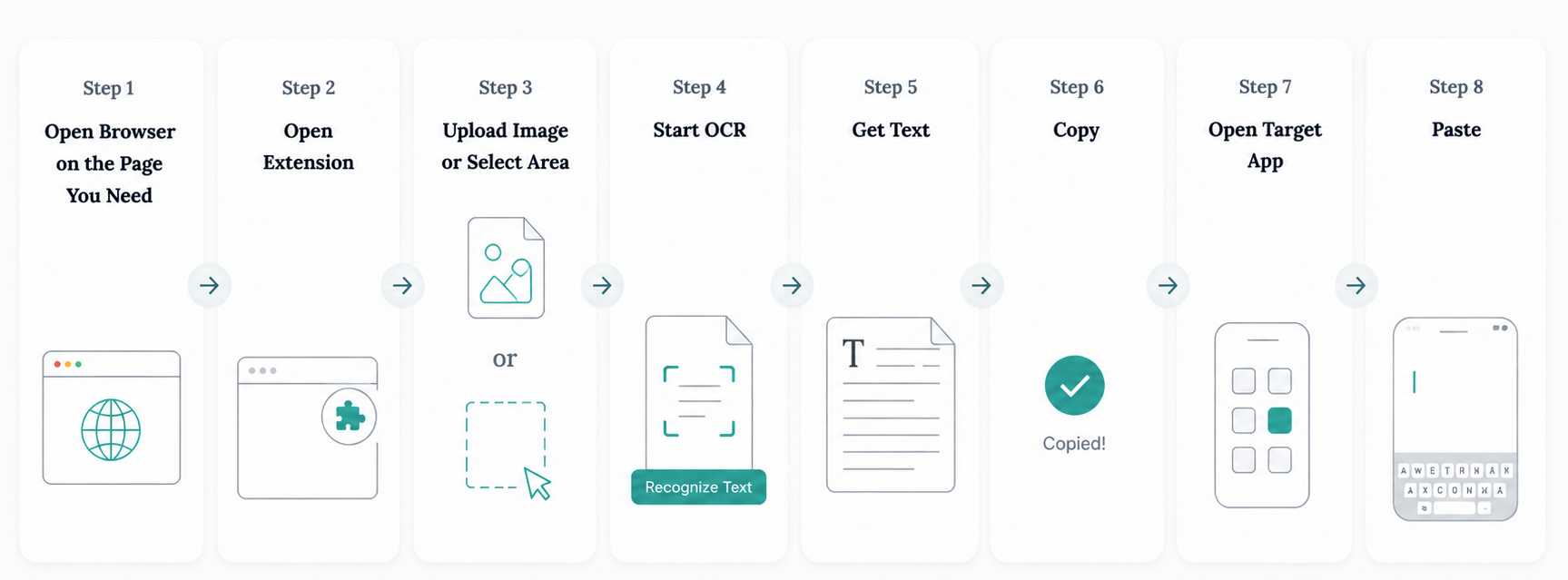
The basic workflow came to 8 actions again, but there is one important limitation here: browser extensions work on a computer, so this method isn't available on a smartphone. If the original image is on your phone, you'll first need to transfer it to your computer, which adds more actions to the workflow.
I also couldn't simply paste a link to an Instagram post or another social media post into the extensions I tested and have it processed directly. So, just like with web tools, you may first need to save the image.
And once you have the text, the process is familiar: copy it, open the app where you need it, and paste it manually.
All three methods so far land on the same number, and all three end the same way: copy, switch apps, paste.
Telegram bot
Finally, I tested a Telegram bot using ImgTxtApp by LaVioLab as an example, and this workflow works a little differently.
In many cases, you can send an image through the system Share menu directly from wherever it already is: a social network, browser, another app, your phone gallery, or cloud storage. So you don't necessarily have to save the image first, then open Telegram separately, find the file, and upload it again.
The workflow looks like this:
Find the image or Instagram post → tap Share → choose Telegram and ImgTxtApp by LaVioLab → get the text → copy → switch to the app where you need it → paste
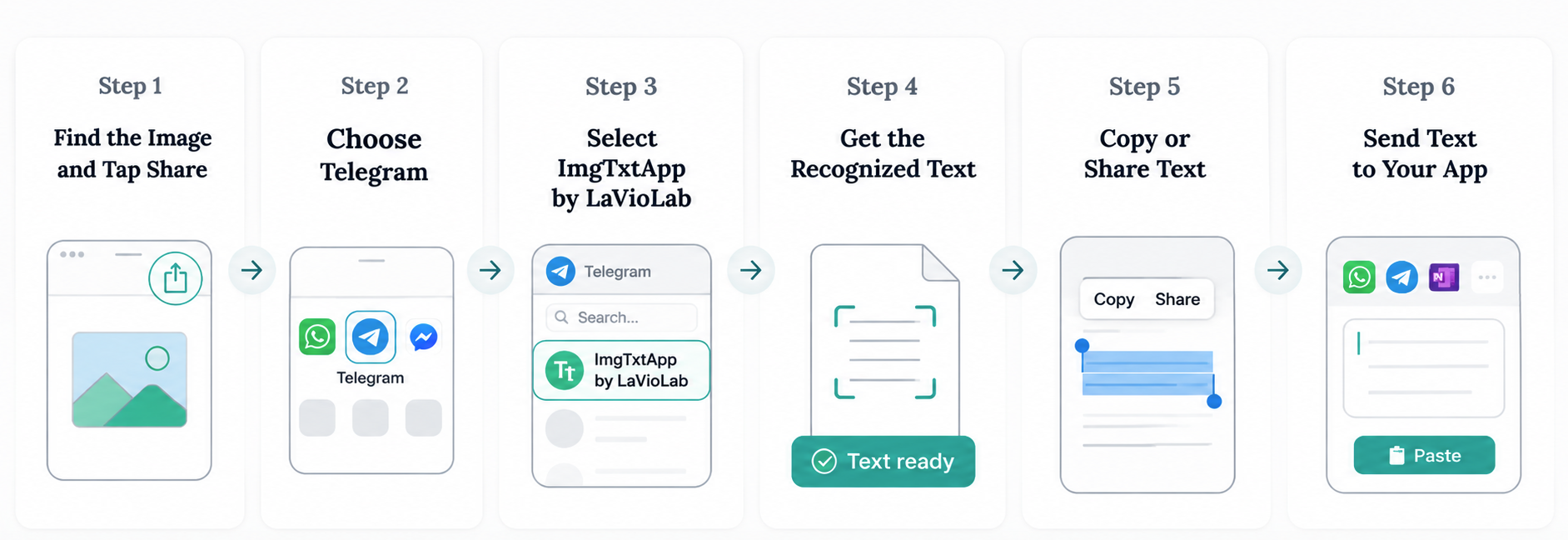
In my test, that came to 7 actions. But what seemed more important to me wasn't really the one-step difference. It was where the original image could be located.
If the app or service has a Share option, you can send the image directly to Telegram without saving it first.
There are also two ways to work with the extracted text. If you need it in another app, you can copy it, switch to that app, and paste it manually. But if you're continuing to work inside Telegram, you can immediately forward the result to another chat, a group, or even another bot — for example, if your next step is translating the text.
Sharing straight from the app the image already lives in is what removes the save-and-re-upload detour.Learn more about ImgTxtApp
What if the image isn't where the tool is?
This, in my opinion, is where the comparison gets much more interesting, because simply saying "this method takes 8 actions and this one takes fewer" doesn't tell the whole story.
Imagine the image is on your computer. In that case, you can use a web tool or browser extension right away. But to use built-in smartphone text recognition, you'll first need to transfer the image to your phone.
Move the same image to your smartphone and the situation changes: built-in text recognition becomes immediately available, while using a browser extension now means transferring the file to your computer first.
So I compared all four methods separately depending on where the original image is located.
| Text extraction method | If the image is on your computer | If the image is on your smartphone | If the image is in cloud storage | If the image is on Instagram |
|---|---|---|---|---|
| Built-in smartphone text recognition | Transfer it to your smartphone | Use it directly | Take a screenshot or download it to your smartphone | Take a screenshot or download it to your smartphone |
| Web tool | Use it directly | Use it directly | Take a screenshot or download it to your device | Take a screenshot or download it to your device |
| Browser extension | Use it directly | Transfer it to your computer | Take a screenshot or download it to your device | Take a screenshot or download it to your device |
| Telegram bot | Use it directly | Use it directly | Use it directly | Use it directly |
And this is where the differences become much clearer.
Built-in text recognition is most convenient when the image is already on your smartphone. A web tool works well with a local file on either a computer or a phone. But if the image is inside another service and you don't have a direct URL to the actual file, you first need to save it.
The browser extension turned out to be the most device-dependent of the four methods, because you can only use it on a computer.
The Telegram bot, on the other hand, was less dependent on where the image was to begin with. In all four scenarios I tested, I could send it directly.
So how many actions did each method take?
After testing all four options, I put the results into one more table and counted exactly how many actions each workflow required.
| Text extraction method | Actions before the text is ready | Requires installing a tool first | Registration / sign-in required for regular use | What you can do with the extracted text |
|---|---|---|---|---|
| Built-in smartphone text recognition | 8 | No | No | Copy → manually switch to another app → paste |
| Web tool | 8 | No | Depends on the tool | Copy → manually switch to another app → paste. Some services also let you download the result as a file |
| Browser extension | 8 | Yes | Yes | Copy → manually switch to another app → paste |
| Telegram bot | 7 | No | No | Copy → manually switch to another app → paste. Or forward it directly to another chat, group, or even another bot |
In the basic scenario, I got:
- built-in smartphone text recognition: 8 actions
- web tool: 8 actions
- browser extension: 8 actions
- Telegram bot: 7 actions
But I wouldn't treat these numbers as a ranking where "7 is always better than 8." Interfaces differ between specific tools, and as we've already seen, where the image is located can add several more actions to the basic workflow.
I think there's a more interesting takeaway here: OCR itself usually isn't the problem at all. The friction comes from all the extra steps around it:
Save the image → open another service → upload the file → extract the text → copy → return to the app where you need it → paste
Each individual step seems tiny, but together they make up the entire workflow — and ultimately the user experience.
That's why the exact same way of extracting text from an image can feel very convenient in one situation and noticeably less convenient in another.
So which method should you choose?
I started this test with a pretty simple question: which method is faster? But I ended up with a slightly different conclusion.
Today, lots of different tools can extract text from a photo, screenshot, or other image. So instead of looking only at OCR capabilities, I think it's much more useful to look at the entire path from the original image to ready-to-use text.
You need to consider where the image is in the first place, whether you have to save it or move it to another device, how many steps it takes to extract the text, and what you then have to do to get that text where you're actually going to use it.
If the image is already on your smartphone, built-in text recognition may be the most natural option. For a local file on your computer, a web tool works well. And if the image is already open on a web page, a browser extension can be convenient.
A Telegram bot becomes especially useful when the image is inside another app and you can send it directly through Share. In that case, you don't have to save the image to your device first and then upload it again somewhere else, so some of those intermediate steps simply disappear.
So my main takeaway from this experiment is pretty simple: the best way to extract text from an image is the one that requires the fewest unnecessary steps between the original image and the place where you actually need the text.
Try it yourself
And since one of the methods in this test happens to be my own bot, I'll leave it here 🫠
The first 5 extractions in ImgTxtApp by LaVioLab are free.
You can send the bot a regular image or an Instagram post, and if the image is inside another app, you can send it directly through Share. You'll get editable text back that you can copy, forward, or use wherever you need it next.