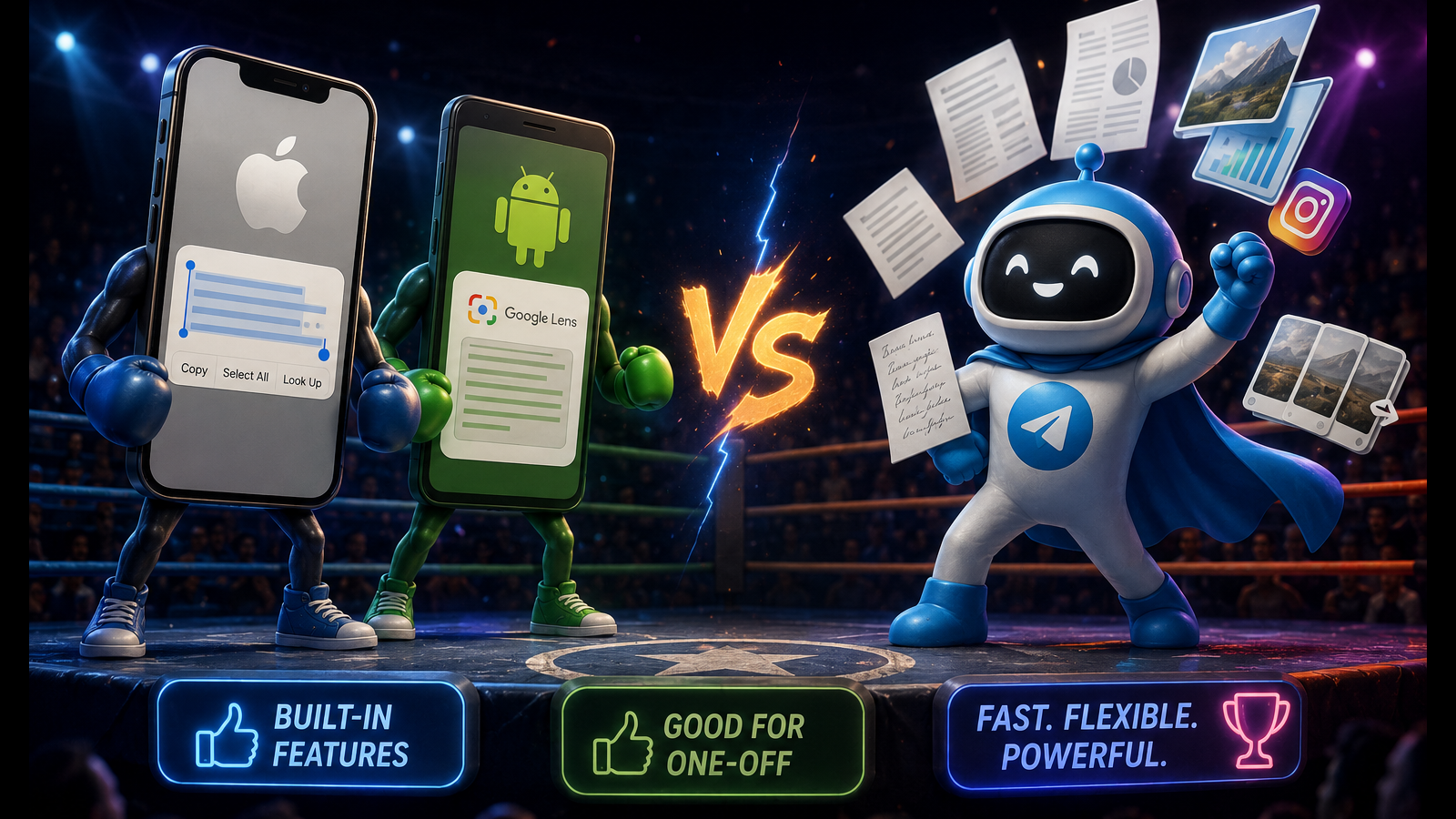
How to copy text from an image on iPhone
I decided to revisit a pretty simple question: what is the fastest way to copy text from an image on your phone today?
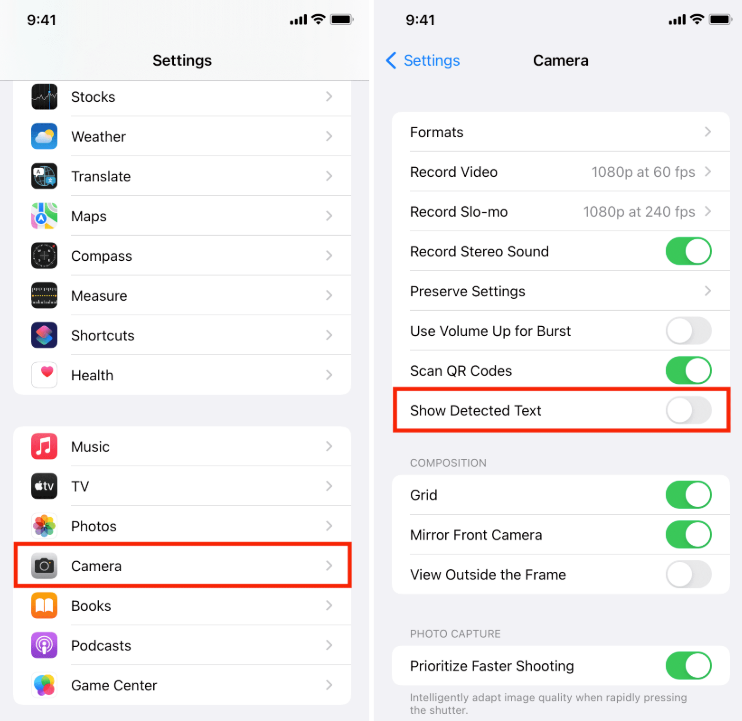
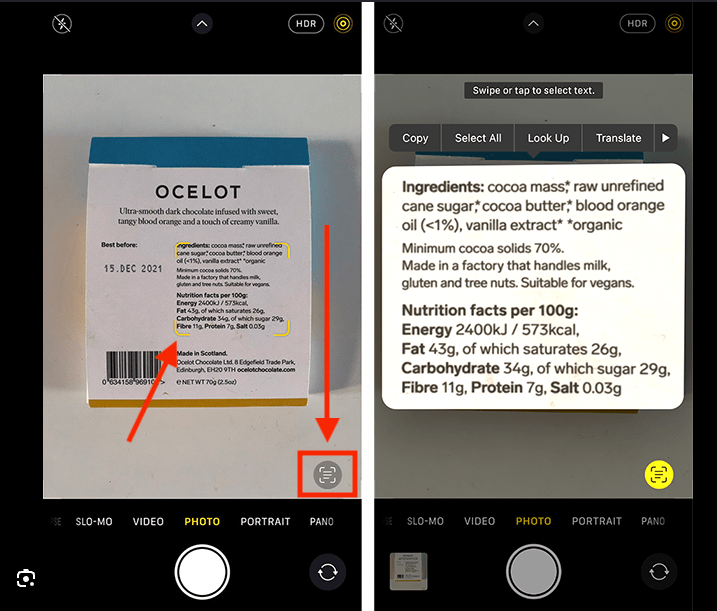
If the image is already in your photo library and the text is easy to read, the answer is fairly straightforward. On iPhone, the built-in feature for this is called Live Text, and the whole process takes just a few actions:
- Open the Photos app
- Choose the photo or screenshot
- Tap the Live Text icon, or simply touch and hold a word in the image
- Select the part of the text you need
- Tap "Copy"
- Paste the text into Notes, a message, a document, or another app
This is one of the simplest scenarios because the image is already where it can be recognized. There is no need to save the file first, upload it to another tool, or switch between apps.
Live Text isn't limited to photos in your library. You can also recognize text directly through the camera, in images in Safari, and, starting with iOS 16, in a paused video frame.
Live Text requires an iPhone XS, iPhone XR, or later running iOS 15 or newer.
What to do if Live Text isn't showing up on iPhone
I actually found this case more interesting than the basic instructions, because it's easy to find a simple step-by-step guide, but when the Live Text button doesn't appear, it isn't always obvious what went wrong.
The first thing to check is the setting:
Settings → General → Language & Region → Live Text
Make sure Live Text is turned on. If the setting is already enabled, the image itself may be the problem, since very small text, heavy blur, unusual fonts, or low contrast can make recognition less reliable.
The language of the text can also make a difference. Live Text doesn't handle every language in exactly the same way, so recognition may work perfectly on one image and be noticeably worse on another.
Your device matters as well, since Live Text is supported starting with the iPhone XS and iPhone XR.
If the text still can't be selected, I would first try zooming in or finding a clearer version of the image before switching to another text recognition method.
How to copy text from an image on Android
Android is a little more complicated because the interface and location of text recognition features can vary depending on the phone manufacturer and system version. That's why I used Google Photos + Google Lens as the most universal route:
- Open Google Photos
- Choose the photo or screenshot
- Open Google Lens
- Select the text you need from the image
- Tap "Copy"
- Paste the text wherever you want to use it
On some devices, Google Lens can be opened directly from the camera or system gallery, which makes the process even shorter. Some manufacturers also provide their own text recognition features. On Samsung phones, for example, text extraction may be available directly in Gallery.
So rather than looking for one universal button that works on every Android phone, it makes more sense to consider the specific device you're using. If your interface doesn't match the screenshots above, that doesn't necessarily mean text recognition isn't available. The feature may simply be located somewhere else.
What about Circle to Search?
Some newer Android phones offer another option called Circle to Search. It's particularly convenient when the text you need is already visible on the screen because you don't have to take a screenshot or save the image to your gallery first.
To copy the text:
- Launch Circle to Search by long-pressing the Home button or navigation handle
- Select the text on the screen
- If the text isn't selected automatically, choose "Select text"
- Copy the part you need
In this scenario, the path can be shorter than using Google Lens through the usual "take a screenshot → open it in the gallery → launch Lens → copy the text" workflow.
Circle to Search isn't available on every Android phone, so I would treat it as a useful additional option rather than a universal method.
How to copy text from a screenshot
Screenshots work much like regular photos. On iPhone, you can open the screenshot in Photos and use Live Text, while on Android you can open it in Google Photos or your system gallery and use Google Lens or the phone's built-in text recognition.
But I think the more important question here is not the image format itself, but where the image is in the first place. If you've just taken the screenshot on your phone, the built-in method is very convenient because the image is already in your photo library, where you can immediately select and copy the text.
If the image is already inside Telegram, Instagram, WhatsApp, X, or another app, the workflow can become longer:
save the image → open the gallery → find it → recognize the text → copy it → return to the app where you need it
For a single image, the difference is small. But with several images, you have to repeat those intermediate actions every time, and they can eventually take longer than the text recognition itself.
When the built-in tools aren't enough
After testing these methods, I wouldn't divide them into "good" and "bad" options because each one has scenarios where it works really well. If I only need to copy text from a single photo that's already in my library, I would almost always start with the phone's built-in feature.
But when there are several images or they're located inside other apps, the usual workflow starts to get noticeably longer.
If you have several images
Imagine you have ten pages from a book instead of one, or an entire series of screenshots from a conversation. With Live Text or Google Lens, each image has to be opened and processed separately:
open → select → copy → paste → move to the next image
You have to repeat the same sequence for every image and then bring all those separate pieces of text together somewhere else. At that point, the difference isn't so much about OCR quality as it is about the number of repeated actions.
If the image is inside another app
I run into this scenario especially often with Instagram and Telegram. If I see a post or image and want the text from it, using the built-in recognition usually means saving the image first, finding it in my photo library, running text recognition, copying the result, and then returning to wherever I actually want to use the text.
In cases like this, a method that lets you send the image directly through Share can be more convenient. For example, I use my own Telegram bot, ImgTxtApp, for this: I can send an image from another app straight to Telegram and get the recognized text back as a separate message.
So the important difference here isn't really how the text is recognized, but what happens to the entire workflow. The intermediate step of saving the image to the photo library simply disappears.
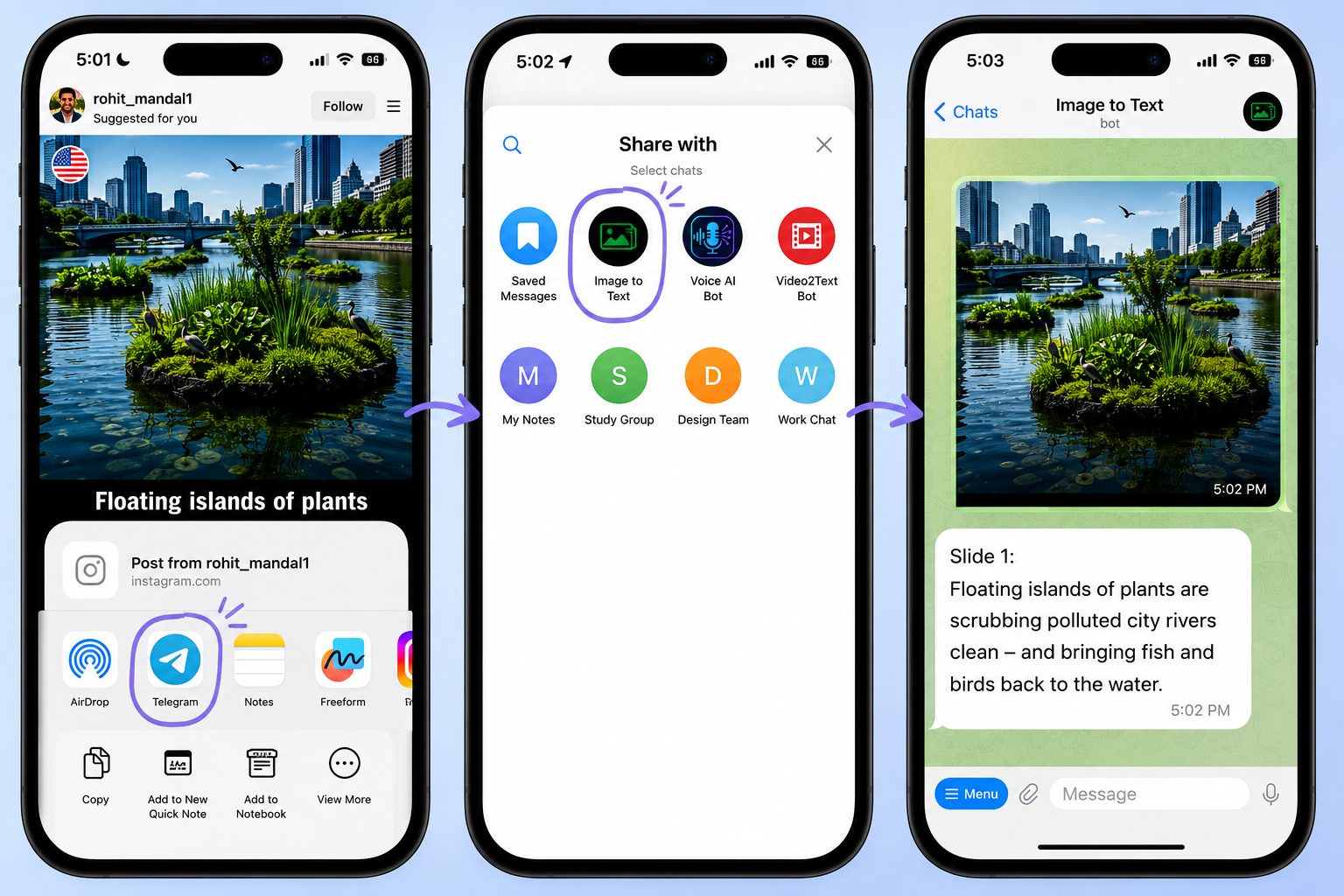
The bot supports photos, screenshots, documents, presentations, multiple images at once, and Instagram carousels.Learn more about ImgTxtApp
If you need text from several images at once
The workflow changes even more when several images are involved. ImgTxtApp lets you send multiple images in a single request and receive the extracted text together, so you don't have to repeat the same process separately for every image.
This can be useful if you have:
- several pages from a book
- a series of screenshots from a conversation
- photos of a document
- images from the same Instagram carousel
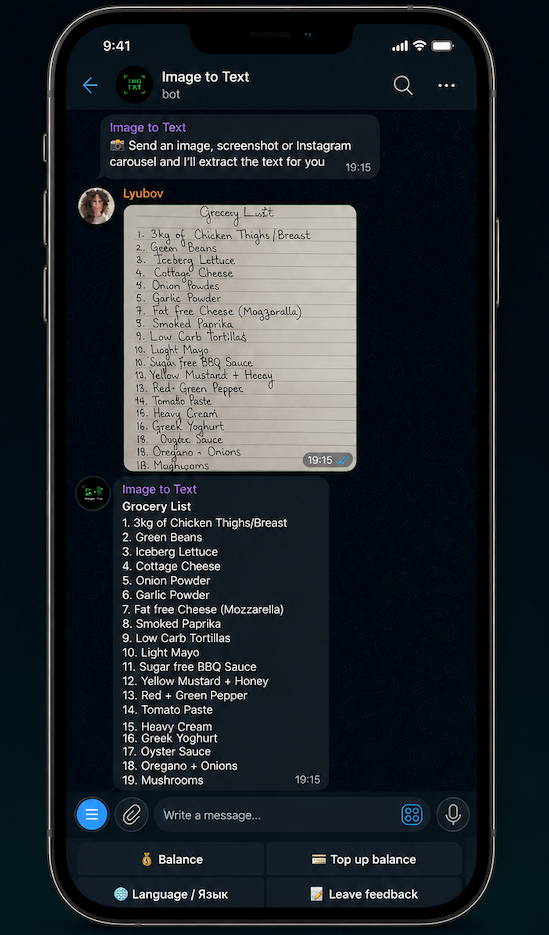
In these scenarios, I would look beyond how many actions it takes to tap "Copy" on a single photo and consider the entire path from a group of source images to text that is ready to use.
If the text is handwritten or the image is difficult to read
With handwriting and more difficult images, the result becomes less predictable regardless of the method you use. Image sharpness, text size, contrast, page angle, and the handwriting itself can all affect recognition quality. Handwritten pages turned out to deserve their own test, which I ran in How to Convert Handwriting to Text from a Photo.
Whenever I'm extracting handwritten notes, poorly photographed documents, or other difficult text, I always check the result against the original image before using it.
Which method should you use?
In the end, I would reduce the choice to a fairly simple rule: if the image is already in your photo library and you only need to copy text from one photo or screenshot, your phone's built-in features will almost always be the most natural option.
| Situation | What I'd try first |
|---|---|
| One photo already in iPhone Photos | Live Text |
| One photo already on Android | Google Lens / built-in text recognition |
| Text is currently open on a supported Android phone | Circle to Search |
| You just took a screenshot | Built-in phone feature |
| Image is inside Instagram, Telegram, or another app | Share it directly to a tool that accepts images |
| Several images to process | Batch text extraction |
| Handwritten or difficult-to-read text | OCR + manual review |
If the image is inside another app, there are several images, or you need to process them one after another, then it makes more sense to look at the entire path to the final text and the number of extra actions involved.
So I wouldn't treat the table above as a ranking. An alternative tool becomes more useful not because "Telegram is better than iPhone" or "a bot is better than Google Lens", but because in certain scenarios it can make the overall process shorter.
What I would choose
I started this comparison with a pretty simple question: what is the fastest way to copy text from an image on your phone? But I ended up concluding that speed depends less on the recognition itself and more on where the image is in the first place, how many images you have, and what you want to do with the extracted text afterward.
If the photo is already in your gallery and you only need text from that one image, the built-in tool is the most natural choice. It's difficult to make that workflow much shorter.
If the image is inside another app, there are several images, or you need to combine their text into one result, I would look at the entire workflow rather than just the number of actions involved in OCR itself. In those situations, being able to send the images directly to a tool and get the text back in one place can matter more than the recognition method.
One of the options I use myself is my Telegram bot ImgTxtApp by LaVioLab, so I'll leave it here for anyone whose workflow looks similar 🫠 The first 5 extractions are free.